

How to Cast to Your TV
Getting Started
Enjoy your favorite movies and TV shows on the big screen! This guide will show you how to cast content from your iPhone using AirPlay or from any device using Chromecast.
Casting with AirPlay (iPhone/iPad)
AirPlay allows you to wirelessly stream content from your iPhone or iPad to your Apple TV or AirPlay-compatible smart TV.
Requirements:
- iPhone or iPad with iOS 12.3 or later
- Apple TV (3rd generation or later) or AirPlay 2-compatible TV
- Both devices connected to the same Wi-Fi network
Step-by-Step Instructions:
- Connect to Wi-Fi: Ensure your iPhone and Apple TV/Smart TV are on the same Wi-Fi network
- Open the App: Launch our streaming app on your iPhone
- Select Content: Browse and select the movie or TV show you want to watch
- Start Playback: Tap the play button to start the video
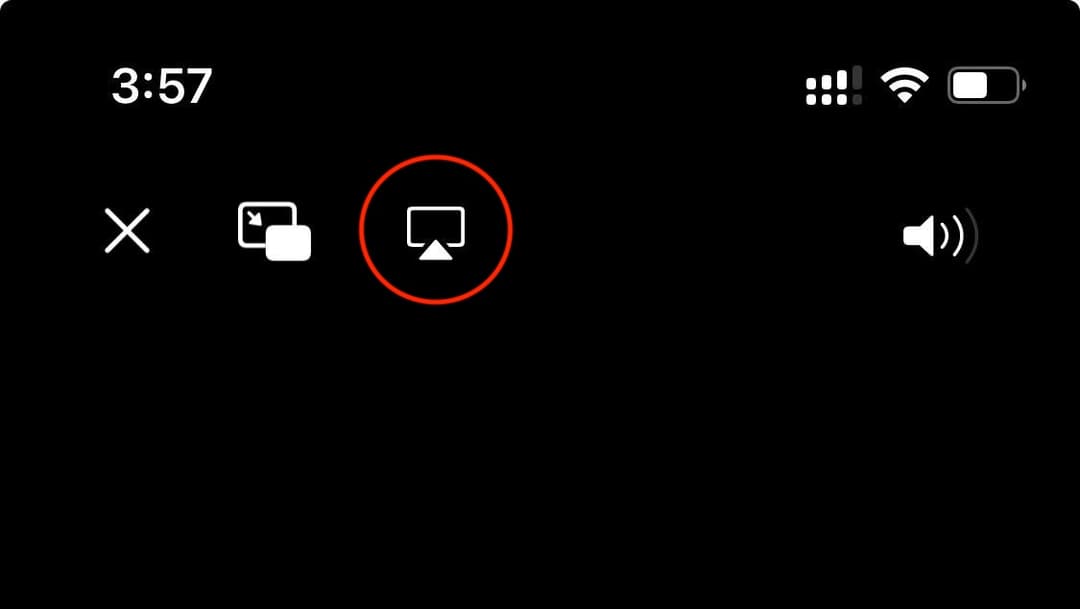
- Access AirPlay: Look for the AirPlay icon (a triangle with circles) in the video player controls
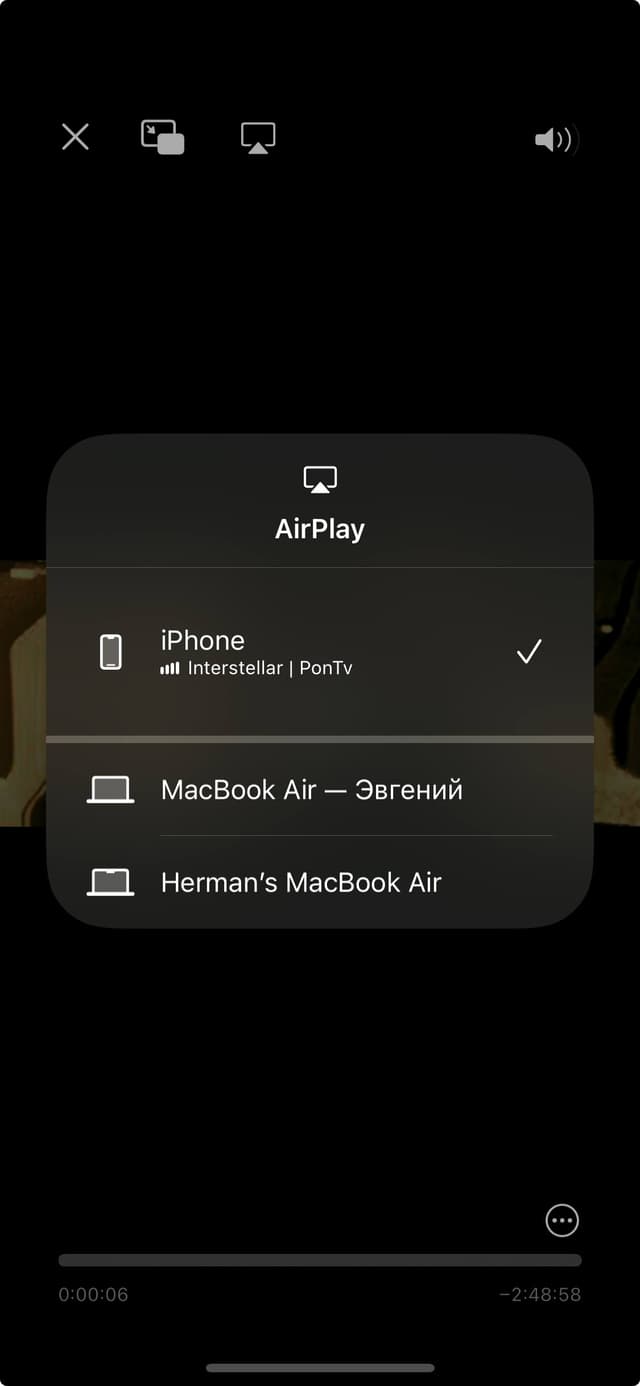
- Choose Your TV: Tap the AirPlay icon and select your Apple TV or AirPlay-compatible TV from the list
- Enjoy: The video will now play on your TV screen
AirPlay Icon
Device Selection
Alternative AirPlay Method
You can also cast using the Control Center:
- Start playing your video on iPhone
- Swipe down from the top-right corner (iPhone X or later) or swipe up from the bottom (iPhone 8 or earlier) to open Control Center
- Tap "Screen Mirroring"
- Select your Apple TV or AirPlay 2-compatible TV
- Your entire screen will be mirrored to the TV
Casting with Chromecast
Chromecast allows you to stream content from your phone, tablet, or computer to your TV using Google's casting technology.
Requirements:
- Chromecast device or Chromecast built-in TV
- Smartphone, tablet, or computer
- Chrome browser (for computer casting)
- Both devices connected to the same Wi-Fi network
Step-by-Step Instructions (Mobile):
- Setup Chromecast: Ensure your Chromecast is set up and connected to your TV
- Connect to Wi-Fi: Make sure your phone and Chromecast are on the same Wi-Fi network
- Open the App: Launch our streaming app on your mobile device
- Select Content: Choose the movie or TV show you want to watch
- Start Playback: Tap play to start the video
- Find Cast Icon: Look for the Cast icon (a rectangle with Wi-Fi waves) in the video player
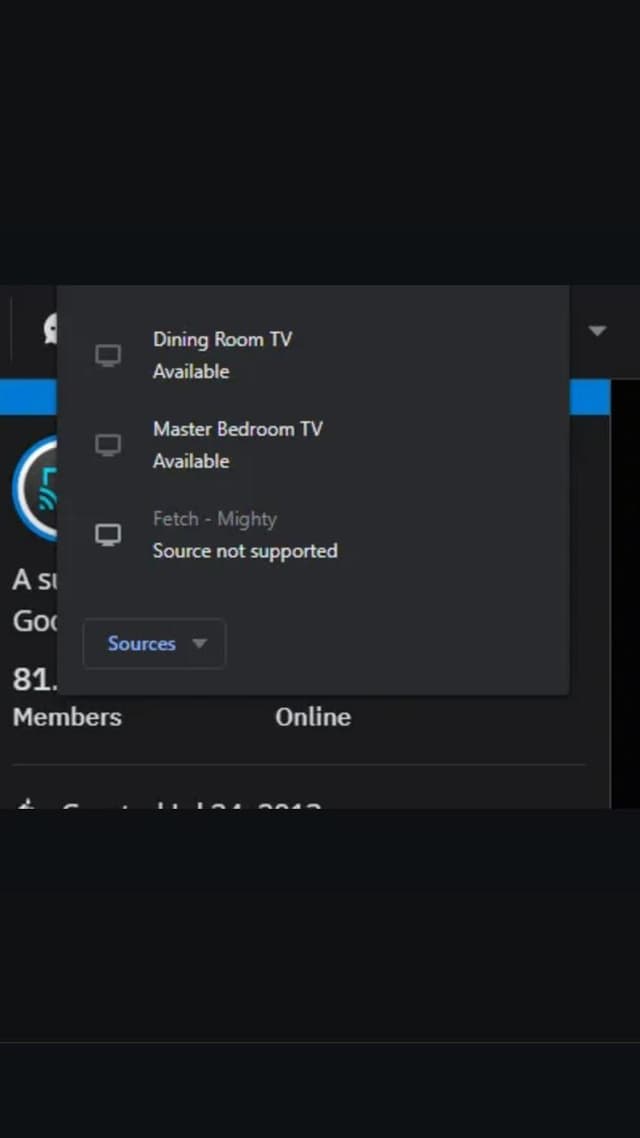
- Select Your Chromecast: Tap the Cast icon and choose your Chromecast device from the list
- Enjoy: The video will start playing on your TV
Cast Icon
Device Selection
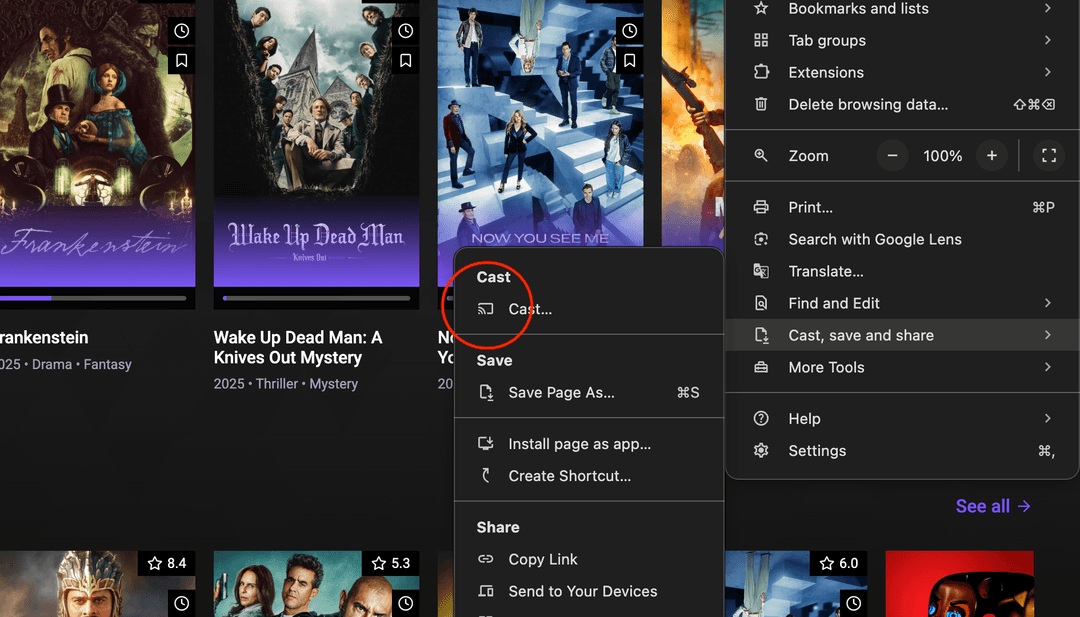
Casting from Chrome Browser (Desktop)
To cast from your computer:
- Open Chrome browser and visit our website
- Click the three dots menu (⋮) in the top-right corner
- Select "Cast..." from the menu
- Choose your Chromecast device
- Select "Cast tab" to cast the browser tab
- Navigate to and play your video
Playback Controls While Casting
While casting, you can control playback from your device:
- Play/Pause: Use your phone or tablet as a remote control
- Volume: Adjust volume using your device or TV remote
- Seek: Jump to different parts of the video
- Stop Casting:Tap the cast icon again and select "Stop casting"
- Switch Devices: You can switch between devices while maintaining playback
Troubleshooting
General Issues:
- Ensure all devices are on the same Wi-Fi network
- Check that your Wi-Fi signal is strong
- Restart your TV, casting device, and phone/tablet
- Update your apps and device firmware to the latest version
AirPlay Specific:
- Make sure AirPlay is enabled on your Apple TV or Smart TV
- Check if your TV supports AirPlay 2
- Disable VPN on your iPhone temporarily
- Reset network settings if connection fails
Chromecast Specific:
- Verify your Chromecast is powered on and connected
- Try unplugging and replugging your Chromecast
- Check if your router has guest network isolation disabled
- Ensure your Chromecast firmware is up to date
Tips for Best Experience
- Use a 5GHz Wi-Fi network for better streaming quality (if available)
- Close other apps running in the background on your device
- Keep your device charged during extended viewing sessions
- Position your router closer to your TV and casting device
- Reduce Wi-Fi interference from other devices
- For best quality, ensure your internet speed is at least 10 Mbps
Now you're ready to enjoy your favorite content on the big screen! If you need further assistance, please don't hesitate to contact our support team.
Hello!
Need help? Chat with our support team.